
The dashboard
The dashboard is buddi’s page in your browser, on http://127.0.0.1:4317. It
is where you talk to your agents, decide what they ask, and see what ran while
you were away. It is served by buddi itself, on this machine, and reaches
nothing outside it.
Getting in
Section titled “Getting in”buddi (or buddi dashboard) opens it with a sign-in link that is good for
five minutes and works once. The browser swaps it for a session: 30 days idle
on this machine, 12 hours from anywhere else. buddi dashboard --token prints
only the ticket, for a browser on another device. The first time, the link
opens first run (see First run): five chapters with a map —
your name and clock, a brain, what buddi takes on (its plugins install in the
background), how you reach each other, and your assistant — then the
assistant’s first hello, with four first questions and what is still waiting. Remote access and
the session rules are in Operations.
Install buddi as an app
Section titled “Install buddi as an app”The dashboard is an installable web app: Chrome and Edge offer “Install buddi”,
and Safari has File → Add to Dock. Installed, it opens in its own window with
the Blob as its icon. When the browser offers an install, Home shows one quiet
line at its foot (“Install buddi as an app, one click from your dock”, with
Install and Not now) and the owner menu has Install the app; neither shows
inside the installed app. Settings → System → The dashboard as an app keeps
the rest: where your browser puts its install item, the bookmark shortcut (⌘D
or Ctrl+D) and, on the Mac buddi runs on, buddi dashboard --install-app, a
double-clickable app in ~/Applications that signs you in with a fresh link each
time. An app keeps the address it was installed from, so the tailnet address
installs as its own app. The app has no reload button, so the owner menu at the
foot of the rail has Reload; after an upgrade it reads Reload to update
in any mode, with a dot on your initial. The page asks which build buddi serves
every five minutes and right after its live connection comes back (a restart
drops it). On a new build it reloads itself, where you were, when the tab is
hidden or you have been idle for a minute with every composer empty, nothing
recording and no sheet open; otherwise the dot and Reload to update wait
for you.
Installed, buddi also opens when the gateway is out of reach: instead of the
browser’s error it says buddi isn’t answering at that address and what to
check (on this Mac, buddi status; on the tailnet address, whether Tailscale
is on and the Mac awake), asks again every ten seconds and comes back on its
own. A page already open says “Lost buddi. Retrying…” in the banner slot after
thirty seconds without an answer.
The banner and the status line
Section titled “The banner and the status line”One banner slot sits at the top of every page and appears only while something matters: a buddi restored from a backup (until its checklist is done), a lost connection, a paused queue. It shows the most important of them — in that order — with “+N more” for the rest, and its one action on the right (Finish the checklist, Resume).
A thin status line runs along the foot, each item a link to where it is decided: the connection (Local, Tailnet, or Reconnecting… while requests go unanswered) → Settings → System; the focus that is on and until when → Settings → Notifications; the work — agents working, the queue running or paused, failed jobs → Activity → Jobs; approvals waiting → Home’s Needs you; the version, with a dot when a newer buddi is ready → Settings → System; the time in your timezone, naming the zone when this device’s is a different one → Settings → Profile; and, once a PIN is set, a padlock that locks the dashboard. The time moves on the minute. On a phone the line folds into one dot on the rail under Settings, coloured by the worst of what it says, which opens the same items.
The rail
Section titled “The rail”The column on the left holds the places: Home, Chat, Agents, Activity, Files, then the pages plugins add (such as Mail and Calendar), and Settings at the foot. Settings → Appearance → In the rail chooses which plugin pages sit there; all are on until you turn one off, and a page taken off the rail still opens from Settings → Plugins (Open). The place you are on is filled and marked. Home carries the rail’s only count: the things waiting on you. Settings carries a dot, without a number, when a newer buddi is ready.
Under Settings is your initial. It opens a small menu: the theme (Light, Dark,
System), a way to Appearance, and the running version, buddi <version>. When a
newer one is out it says “A newer buddi is ready” with its number, and a click
goes to Settings → System to upgrade.
On every page but Home and Chat, a round buddi button in the bottom-right corner opens a small chat with your front desk over the page (the same composer, the answer streamed in place, Open in Chat to carry on there); it keeps its conversation until you reload or press New.
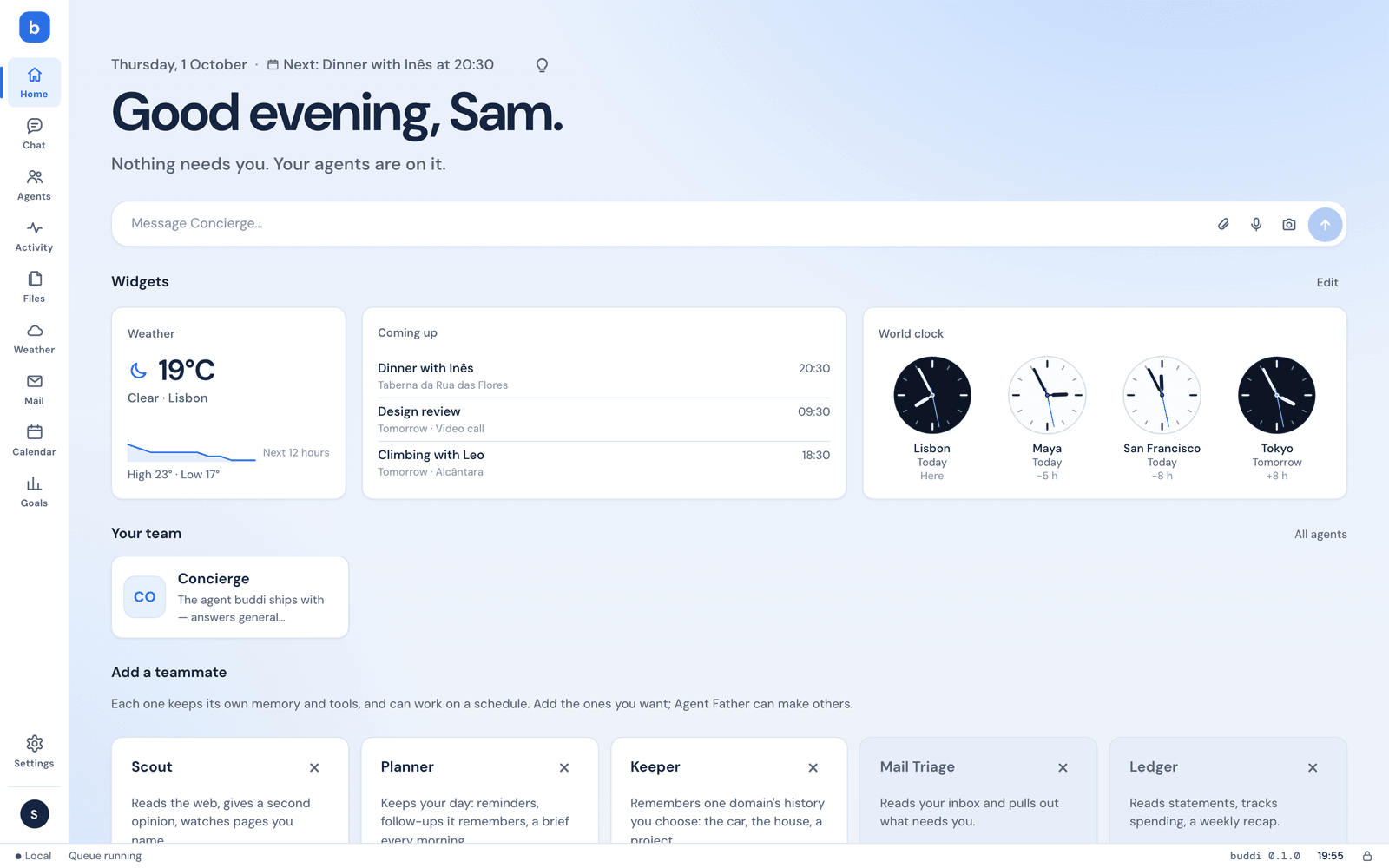
The page the dashboard opens on. It answers three questions in order: what needs me, what is my team up to, what is coming.
- The glance at the top: the date (with plugins’ one-line glances and the Tips bulb), a large greeting, and what needs you as one line of counts, each a link to its list (failed jobs and urgent alerts to Activity, proposals to Settings; approvals, questions, requests, connections to check, agents to set up and a restore to finish scroll to Needs you). The counts, the rail’s badge on Home and the lock screen all count by one rule (below). On the right, the Blob. When the front desk’s face is the Blob, it breathes there, as it does on the first-run page; with reduced motion set on your computer, it stays a still picture. On a phone it stacks. A glance whose widget is on Home leaves the date line: the widget says it.
- The composer under it writes to your front desk (the default agent): one line that grows as you type, with files and voice like the chat; sending opens the new conversation where the answer arrives, and its last three conversations sit below as “Continue” links.
- Needs you: only what you can act on. Approval cards you decide in place;
the watchers’ urgent decisions; an agent holding its turn for your answer
(“Asked you a question”, opening its conversation); a message that carries
an action, with the ask under its title (“Ledger · Confirm with the bank?” —
an agent’s own message without its “@handle:”, a plugin’s by its page’s name,
“Mail”); failed jobs (Retry · Dismiss); proposals to keep or discard; a
connection whose sign-in ran out or whose tools need review (× until it
says something new); an agent a plugin needs; a restore’s checklist. Not
here: a mission’s report, an agent’s plain message, a reminder that fired,
the recap and learned lines. They still reach you on your channel and are
listed in Settings → Notifications → Recent (“All notifications”, the
section’s link), but they are not something to do, so they never sit here
and never count. A watcher or a source that failed says so above, closable.
Done is kept by buddi, so a message does not come back on reload. The
counts line, the badge on Home in the rail and the lock screen read the
same count from the gateway (
needsYouonGET /api/overview). - Widgets: small live panels the plugins export — the weather at home, what is coming up, who is waiting on your reply, the World clock buddi itself provides (Digital, or Analog: a face per place, yours first, light from sunrise to sunset there and dark at night, ticking on the page) — in your order and size, under Needs you so what needs you stays first. Each card is one placement: a widget, a size and its own settings, so the same widget can sit twice (“Weather” and “Weather · Work”). A grid of cards on one row height: small takes one column, medium two, as many columns as the page fits, one column on a phone (each as tall as what it holds). A widget opens its plugin’s page; its ⋯ menu says which plugin and when it was updated, and opens its Settings…, moves it, changes its size, opens Edit, or hides it from Home (“Today hidden · Undo” stays in its place for a few seconds). Settings open in a sheet that draws the card live as you change them — the place, the units, which calendars and how far ahead, which mailbox, a time format (your Profile’s by default) — from the fields the plugin declares. Edit turns the cards dashed: drag one by its grip, or focus the grip and use the arrow keys, or the ‹ › buttons (up and down on a phone); pick Small or Medium; the gear opens its settings; × takes one off; “Add widgets” lists every widget — one already on Home that has settings offers “Add another” and opens its settings at once. Done saves, Cancel puts it all back. A widget whose last refresh failed keeps its last panel and says how old it is (“2 h old”); one that never answered says “Couldn’t load this.” with Try again; a sensitive one (a budget) is hidden on screen until Show. With nothing placed, one line offers “Add widgets”; with no plugin offering any, there is no section. The layout is kept by the installation, so the phone shows what the laptop arranged; the lock screen keeps its own (below). Until you arrange them, Home shows every widget that is not sensitive. The weather card that used to sit beside the greeting is the first widget; an older plugin’s glance card appears as a small widget too.
- Your team: one face per agent, with what it is waiting on or what it does. A face opens a conversation with it. While the team is the front desk and the maker plus at most one more, three teammates from the catalogue are suggested under the faces, from what is set up (Chief of Staff; CFO once Finance is in; then Researcher and Tutor), each with Add, and the section’s link reads See all teammates. After that, one dashed Add a teammate tile closes the faces and opens the catalogue.
- On offer: up to six next steps your agents suggested, each a chip. Under it, when the browser has offered an install, one quiet line to install buddi as an app.
- Coming up: the next missions and reminders. Lately: the last five conversations.
- Blocks plugins add, such as Goals, each with × (Settings → Appearance → Home sections shows one again), and “What buddi learned this week” for three days after the digest runs: one line per kind in plain words (“Remembered 18 things · See memory”, “Quieted 26 senders · See rules”), empty kinds left out; × hides it until next week’s.
- Every notice has a way out: the upgrade notice until the next version, a connection’s until its sentence changes, a watcher’s or source’s error until the error changes. What you close is kept by buddi, for every browser.
Tips. When something in buddi has gone unused for a while, a second
agent, a group, a mission, voice, the browser, a mailbox nobody reads, or no
recommended plugin at all (finance, image, speech, weather, calendar), which
points at Browse, Home may show one quiet card under the composer: one sentence and one action.
“Lock buddi with a PIN” comes while no PIN is set, once there is something to
lock: a second device signed in (a session from another address than the
first), a mailbox or money connected, or a week of use; it opens Settings →
Lock screen, and its × silences it for good.
At most one tip a day, never during first run, and never about a plugin that
is not installed. “Not this again” removes that tip for good; the × puts it off
for a week. A tip whose reason goes away disappears on its own. Settings →
Notifications → Tips on Home turns them off. The rules are data, one entry
each in packages/gateway/src/tips/rules.ts; what they decide on is read from
the installation, plus the pages the dashboard reports it opened, once a day
each. The lightbulb left of the Blob opens a Tips section under the greeting:
one card per tip with where it stands (due today, waiting, not needed now,
dismissed with Bring back, shown on a day), and the same Tips on Home switch;
while it is open the day’s tip card is hidden, and the browser remembers it
open. A dot marks one due today while tips are off.
Try it: approve a waiting card from Needs you without opening the chat.
A conversation on the left and the canvas on the right. It opens on your most recent conversation, not on an empty page. A second rail beside it holds your team, one face each; a badge on a face means that agent is waiting on you. New chat starts a fresh conversation, History lists the earlier ones.
The thread is the conversation as it happens: the agent’s answer, the steps it took, and the cards it asks you to decide. You can keep typing while the agent works: what you send joins the run (see Conversations). Stop ends the run.
The composer is one box:
- the paperclip attaches a file; paste and drop work too. Each file is a tile that says uploading, ready or failed, and nothing is sent until it is ready;
- the camera snaps a tab: the browser asks which tab, and one frame of it is attached as a picture;
- the model chip shows the model this agent runs on; a click opens its setup to change it;
- Thinking turns the agent’s reasoning before the answer on or off.
Talking to buddi. With the speech plugin set up on Settings → Speech, the microphone beside the paperclip turns what you say into text: hold it and let go, or click once to start and again to stop; a red dot follows your voice while it listens. The words land in the box for you to edit and send; hold Shift when you stop to send them at once. The speaker switch reads each reply aloud when it is finished, and a new reply interrupts the last; it is remembered in this browser and off until you switch it on. Both run as you, so they ask nothing, and they count against the speech plugin’s daily limits (Speech). The recording is kept in Files like any upload. Under each reply, Copy puts its words on the clipboard and Read aloud speaks that one reply (stop while it plays); they show on hover, and always on a touch screen. An audio file in a conversation or in Files shows as a small player with its length and a download link.
The ⋯ menu in the header is the one menu about whose chat this is. For an agent: Properties (what it can do, on the canvas), Set up, and Open agent page. For a group, it is about the group, never a list of its agents: Members (who is in it and who coordinates), Rename…, then under a hairline Clear history… and Delete group…. On a phone the menu rises from the bottom as a sheet, with Cancel under it.
A group (Groups) has its own room in the same page:
- Members opens a sheet: the coordinator first, then the rest. A row’s ⋯ makes that member the coordinator, opens its page, or takes it out of the group (what it said stays). Add a member lists who can join, each with Add. Every change is kept as you make it; a group needs two members.
- Rename… asks for the new name in a small dialog.
- Clear history… deletes every conversation the group had, after one sentence saying how many. The group, its members and what it remembers stay, and files it made stay in Files.
- Delete group… asks once, naming what goes (the group, its conversations, what it remembers) and what does not (its agents, its files). The page goes back to the chat you were in before, the group leaves the rail at once, and a toast offers Undo for ten seconds. After a minute it is gone for good.
- A group whose coordinator was removed from buddi cannot take requests: the composer gives way to a sentence and Choose a coordinator, which opens Members with Make coordinator on each row. A group with one member left says so above the composer, with Add a member.
The canvas holds the last few things the conversation produced, as tabs: tables, charts, diffs, terminal output, pictures, documents and previews, the agent’s workspace files, and a Browser tab while an agent drives a browser (see Computer and browser control). A decision waiting to be made stays on the tab strip. On a small screen, the Canvas button opens it.
Every web page an agent reads and every web search it runs in one turn share a single Sources tab, with the number of calls beside its name, instead of a tab each. Pages come first: a letter tile for the site (the dashboard never loads a site’s icon), the title linked out in a new tab, the site, when it was read and how long it is; a row opens on the text the agent took, with Show more. A page that could not be read says why in words — blocked, turned away, not found, timed out, too large. Each search shows its query and the first results, with Show all; the ones the agent went on to read are marked Read. Every call keeps a quiet Raw JSON link. The tab fills in while the turn runs, and clicking a web call in the conversation opens it on that call.
Try it: drop a bank statement on the chat and ask what changed since last month.
Agents
Section titled “Agents”Your team, and one page per agent. Add a teammate, on the right of the head, opens the catalogue. The index has five tabs:
- Team: every agent with its face and whether it can run, a Talk button, and the choice of default agent (the “front desk”).
- Missions: what the team runs on a schedule.
- Offers: next steps the agents have suggested, and agents plugins need.
- Reminders: what the agents have put on the clock.
- Skills: the short texts agents follow (below).
An agent’s own page has the same things for that agent, plus Conversations, Memory, Skills and Setup. Setup has three parts: Identity (name, handle, face, description, persona), Brain (the account and model, turn budget, language, and thinking where the provider honours the switch: Anthropic and OpenAI; on an OpenAI-compatible host it is up to the model) and Access (roles, the tools it may call, and who it may ask: the front desk and the maker ask everyone until you limit them, any other agent only the colleagues ticked there).
An agent that came from the catalogue says so under its name (“From the catalogue · Chef 1.0”), with Update to 1.1 when a newer version is out, or See what changed when you edited its file; giving it a skill or taking one away is not an edit. One the catalogue no longer lists says “No longer in the catalogue”: it keeps working, and no update will come. Remove from team, at the foot of Setup, shows what it does before it does it: the folder goes to the trash folder, its missions are paused, and the plugins no other agent uses are named (they stay installed); the click is the approval. The front desk and the maker are not removed from here.
Try it: move an agent to another model under Setup → Brain.
Skills
Section titled “Skills”Agents → Skills (#/agents?tab=skills) lists every skill on this
computer in one panel, grouped: Yours (written or uploaded), Learned
(an agent proposed it and you kept it), From plugins and From the
catalogue; an empty group is left out. A row is the title, when it’s used,
and one quiet line of who uses it and where it came from. Untrusted text — an
uploaded file, or a page that was in view when an agent proposed it — says so
in one warning line with Mark as mine; a skill nobody uses has Choose
agents. ⋯ holds Choose agents…, Edit text, Download and Delete… (a plugin’s
skill: Open, no Delete).
A row opens its sheet: when it’s used, Used by (Take away per agent; Change… opens the picker — tick agents or Every agent, saved in each agent’s file), and the text (Read · Source). Edit text edits the file in place: a learned skill is saved as its next version, a catalogue one’s next update asks before replacing your change. A plugin’s skill reads only. Delete asks once, naming who stops using it and where the file goes. A skill in an agent’s own folder always stays with that agent and is given to others one by one.
On this tab the head’s actions are Upload a .md and Write a skill; both
open the same form (name, when it’s used, the text, who uses it). An upload is
untrusted unless you tick Mark as mine; a file that isn’t .md is refused
with Pick another file. Bundles with scripts are not taken yet.
An agent’s own Skills tab lists the skills it uses, with Choose
skills… (the same picker the other way round) and All skills into this
page. #/agents?tab=skills&skill=<id> opens one skill’s sheet.
The catalogue
Section titled “The catalogue”#/agents/catalogue: buddi’s ready-made agents, tested with the plugins they
use. A search, the categories All, Work, Money, Home, Health, Learning and
Life, and one grid of cards: the agent’s picture, its title and category, the
pitch, then what it lacks as one warning chip (“Needs Finance”) or what it uses
in muted words, and the action on the right: Add, Added, Update
(an untouched agent with a newer version listed, its changes line above it) or
See what changed (you changed its file and a newer version is out). A
plugin’s own agent shows too, “From Mail”, added through the plugin’s accept.
No match says “No teammate for that yet” with Show all and Ask Agent
Father, which opens the maker’s chat with your words in the composer.
Loading draws quiet cards; with no connection and no saved copy the page says
the catalogue needs withbuddi.com, with Try again; a copy kept from before
says so in the quiet line. A card that reads mail says “Uses your mailbox” once
one is connected. Agents you added that the catalogue no longer lists sit under
No longer in the catalogue; they keep working.
A card opens its page, #/agents/catalogue/<name> (the link withbuddi.com’s
“Add in buddi” opens): the picture, pitch, by buddi, category and version, and
Add
Add opens the install sheet: the By-buddi plugins it installs on the way,
a few picks filled in for you (a mailbox, calendars, a place, a mission’s
hour, one line about you), the handle, the missions with their switches (off),
and the reach in one line with See all. Add
Update opens the update sheet: the changes line, what changes in its file, the reach and the missions in a sentence each, Not now / Update. An agent you edited is never updated on its own: the sheet says what is new, your file against the new version behind See what changed, and Keep mine / Replace my changes (your version goes to the trash folder). A skill of your own named like one the new version brings counts as a change too. If anything moved since the sheet was read, the update is refused and the sheet reads it again.
Activity
Section titled “Activity”Everything that ran, in five tabs: Conversations, Jobs, Approvals, Alerts and Events. Conversations is the readable stream; the others are the same work seen from the queue, the decisions and the log.
Try it: open Jobs, see why one failed, and retry it.
Alerts
Section titled “Alerts”Decisions, not chores. Needs a decision lists only what the watchers
found urgent, each in one plain line written for you — never the instructions
a watcher hands an agent — and repeats of one kind as one row (“9 balances not
updated in 2+ weeks”, the accounts inside on Show the 9). A row has its
primary action (Open draft, Update them, Review, I paid it…), one more, Not
now (back in a week) and ⋯ with Ask
What the watchers notice in passing is not listed: one line says how many notes are saved for the recap (“12 notes saved for Friday’s recap”), and Preview lists them by group, each with the same actions. Snoozed and resolved rows sit behind a quiet line under the panel. Home’s Needs you says the first decision in the same words.
Every file an agent made and every file you sent, across all conversations, newest first. Search by name, filter by Created by agents or Uploaded by you and by kind. Opening one shows a preview where it is safe, a download, and the conversations it was part of. See Files.
Try it: find the CSV you sent last week and jump back to its conversation.
The email plugin’s page: what buddi has read, newest first. Search by words, sender, dates or attachments. Open a conversation to read it, or the reply written for it; Send puts the whole envelope in front of you to approve. See Email.
Try it: open a thread with a Draft pill and send the reply after reading it.
Everything buddi is keeping to a number and a date: open goals and finished ones, each with its progress. One goal shows its history, the checks as a line, its milestones, Close with a note, and a link to the agent that holds it. See Goals.
Try it: open a goal that is behind and ask its agent why.
Settings
Section titled “Settings”A list of sections in four groups.
- Profile: your name and how the agents address you, your timezone, Time (Auto, 12-hour or 24-hour) and Dates (Auto, “Thu, Oct 1”, “Thursday, 1 October” or ISO “2026-10-01”) — every date and time on the dashboard reads that way, and agents write them that way; Auto follows the browser’s language. Under it, Places: Home and Work (offered until you set them) and any other place you name. A row opens a sheet: the name, the address with Find, the towns it may be (each with its coordinates and zone, the best first), and its timezone, filled in from the match. Only the town is looked up, on Open-Meteo; the address stays on this computer. A place in another zone says its time there. The front desk is told your places, and plugins that declare “reads your places” may read them (the weather plugin offers them first). The weather plugin’s Home and Work moved here once, the first time this version started.
- Appearance: theme, background and page width, kept in this browser; which plugin pages sit in the rail and which Home glances show, kept by the installation.
- Notifications: where messages go, the focus schedules, the end of the day, and the last twenty sent. Also where Telegram is paired.
- Memory: what the agents have kept about you, and the means to correct it.
- Proposals: what the agents learned, to keep or discard.
- Model accounts: the credentials the agents run on.
- Computer & browser: whether agents may act on this Mac, which apps, and which browser.
- Keys and secrets: your vault, in groups — your own secrets, mailbox passwords, each plugin’s (calendar links), model accounts and connections (those two read-only, linked to where they are managed). Each row says in plain words what it is, where it may go and when it was last used; a problem is one sentence with its one fix, and a secret nothing uses any more offers Remove. Details are in owner secrets.
- Lock screen: the PIN, how long before the dashboard locks, the background (see Lock screen).
- API tokens: tokens for calling buddi’s HTTP API from a script or another program — each with the name you gave it, its last four characters and when it was last used. Make a token shows it once, with Copy; Revoke ends it at the next request. What a token may and may not call is in the HTTP API.
- Watchers: the checks plugins run on a schedule, with a switch each, and Silenced: every “Stop telling me this”, each with Tell me again.
- Backup: nightly backups, one now, a check, the passphrase, and restore.
- System: the version and upgrade, pausing the queue, this host.
- All plugins: a page of its own under Settings (the title reads
Settings › Plugins), with two tabs. Installed starts with one Add a
plugin panel: where it comes from (From npm, A file, A directory I built),
one field and Read it first, and the trust sentence under it, word for
word. For a directory, Browse… lists the folders under your home
directory on the computer buddi runs on, marks the ones with a package.json,
and Use this folder fills the field. Reading shows its progress on one
line; what was read comes back as a card with its facts on the left and what
the package says about itself on the right, with Not this one and
Install (and a second card, Install anyway, when the two disagree).
Installed plugins are rows: the icon (the market’s, once Browse has been
opened, when it is listed there), name, version, agents waiting to be
accepted, who made it, where it came from and what it adds; then Update to
when withbuddi.com lists a newer one, Open for its page, its state (loaded, disabled, did not load) and a ⋯ menu. A disabled row is dimmed. A row opens a sheet with the rest: where it came from, who published it, its integrity, the hosts it talks to, what it reaches in buddi, and the agents it proposes with Accept; its foot has Remove…, Open, Disable… or Enable, and Update (or Check for an update). Disable and Remove ask in a small dialog; Remove can also drop the plugin’s data, once you type its name, and offers Disable instead. Ships with buddi, folded, names the plugins compiled in and how many tools each adds. Browse is the plugin list from withbuddi.com, fetched through buddi only when you open the tab and kept an hour (Refresh asks again). On top, All · Plugins · Agents: All shows the plugins and then three teammates from the catalogue with See all; Agents shows every catalogue card with Open the catalogue ( #/settings/plugins?tab=browse&kind=agents), each card opening its page there. For plugins: a search field, filter chips (All, Recommended — the plugins buddi publishes that you do not have — and each category: Your days, Money, Voice, Work, Home, Other), and one grid of cards with who made it, how it is trusted and what you have installed. A card opens a sheet with its screenshot, the package, its tools (how many run without asking and how many ask you first), the hosts it talks to, what it reaches in buddi, its dependencies, and its licence and price. The icons and screenshots come through buddi, which keeps them beside the list; the page never fetches withbuddi.com itself. Install stages the listed version and takes you to Installed, where the staged card and its approvals are the same as any install; a newer listed version shows Update to, there and on the installed row, and the Installed tab counts them. A link from withbuddi.com, #/settings/plugins?install=<npm name>@<version>, opens Installed and stages that version at once;#/settings/plugins?tab=browseopens Browse. A plugin’s own settings tabs follow it (see Plugin pages).
Lock screen
Section titled “Lock screen”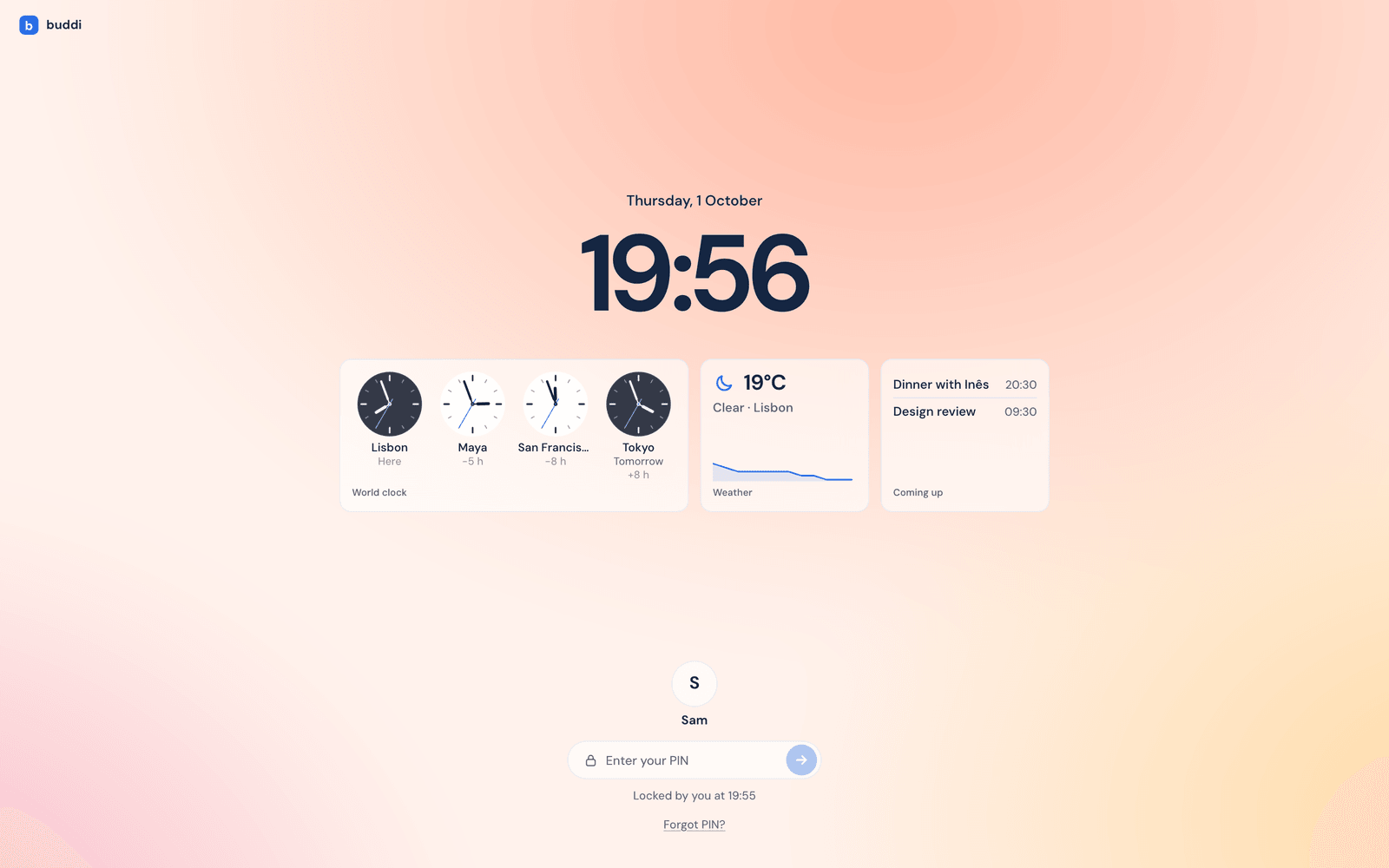
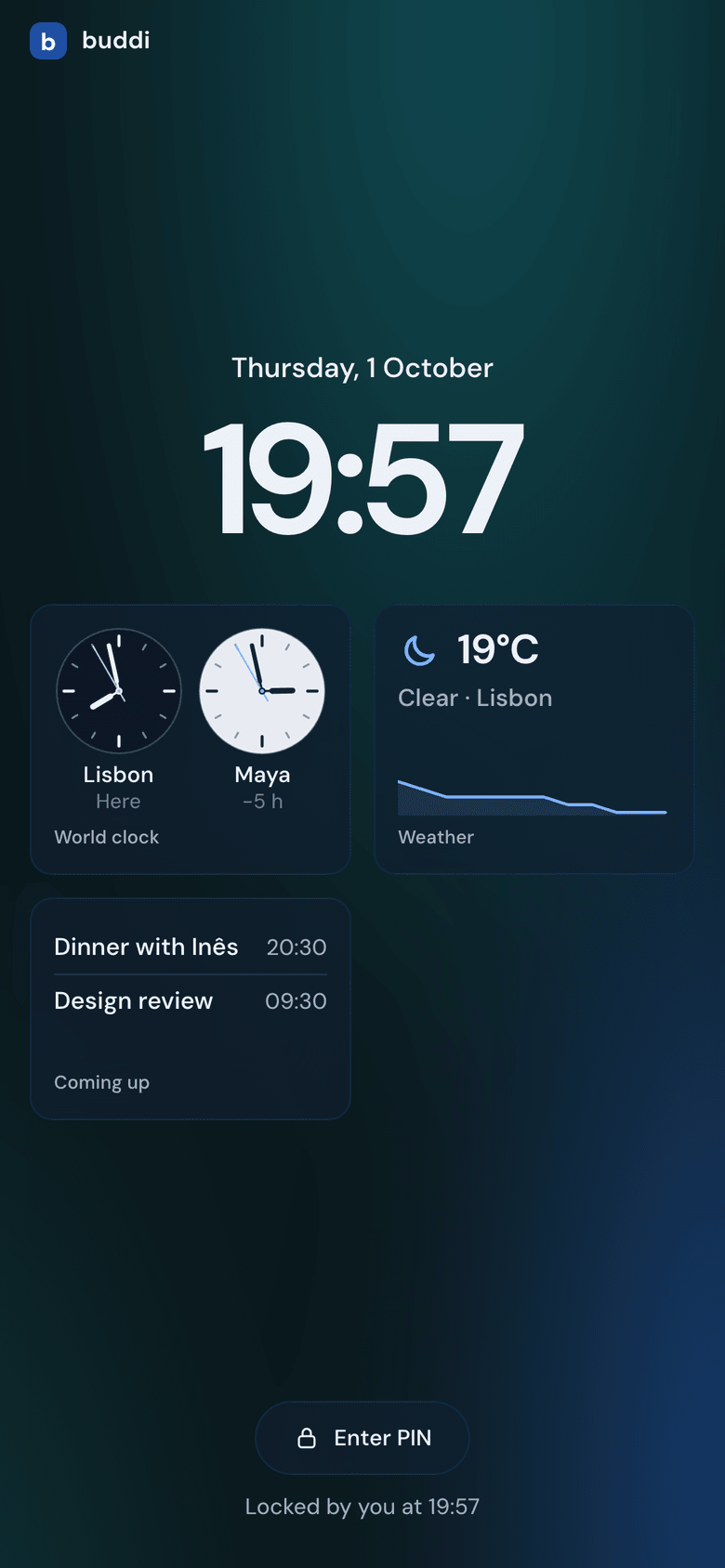
A privacy screen over the dashboard, opened with a PIN, drawn like a phone’s lock screen: its own clock — the date and the time large, in your timezone, your Profile’s way unless you pick otherwise, and a second clock if you want one; how many approvals and other things need you — by the same rule as Home’s Needs you, so a report or a plain message is never counted (counts, never what they are — tap one and the dashboard opens on Needs you once unlocked); the focus while one is on; up to four widgets of its own, compact and never a sensitive one (a sentence such as “Free for the rest of today.” takes one column, and a widget with nothing to show stays off); and the PIN field, with one line saying why it locked (“Locked by you at 14:02”, “Locked after 5 minutes away, at 14:02”, “Locked since this session began, at 14:02”) and Forgot PIN?. Every time on it — the big clock, the second clock, the focus, that line and its widgets left on Profile — reads one way: 12-hour or 24-hour as picked for the lock screen, else your Profile’s, else (Profile on Auto) your browser’s. On a phone the glance comes first and Enter PIN opens a pad. While it shows, nothing of the dashboard is in the page: the app is not drawn underneath, so there is nothing to blur or read.
It is off until you set a PIN in Settings → Lock screen (four to eight digits). Then the dashboard locks when nobody has used it for a while — 5 minutes unless you pick 1, 15 or 60, or Never — and whenever you lock it: Lock now in the owner menu, the padlock at the end of the status line, ⌃⌘L on a Mac or Ctrl+Alt+L elsewhere, from any page, a text field included. The same panel changes or removes the PIN (each asks for the current one), picks the background — Earth, the default, a photo of the planet’s limb from high above that is the same in light and dark (a phone gets its own portrait crop); Buddi, Dawn, Sea, Moss, Dusk, each with a light and a dark; or your own picture (a JPEG or PNG; buddi keeps it as a JPEG of at most 2560 pixels, turned upright, without its location or any other details). A background you picked stays yours; until you pick one, the lock screen is on Earth.
The Earth photo is “outer space photography of earth” by
ActionVance on
Unsplash,
used under the Unsplash License (free to use
and redistribute; credit appreciated). It ships in the dashboard as two WebP
files without any of the original’s metadata, credited under the background
swatches and in packages/web/src/shell/earth/ATTRIBUTION.md.
Under the panel, What it shows is the lock screen editor: a live preview of the lock screen (on a desk or a phone) beside its clock — Time (Profile, saying what it reads as now, such as “Profile (12-hour)”; 12-hour; 24-hour — nothing is kept until you pick one), Date (Profile, three spellings, or none), A second clock (one of your places in another zone, or any town) — and its widgets: up to four, each with its size, its own settings, its order and ×; “Add a widget” offers Home’s (a copy with the same settings) or any widget. Every change is kept at once. It works before a PIN is set too, and is reachable only from Settings, never from the lock screen itself. All of it is kept by the installation, so every device signed in gets the same.
What it is, honestly: a privacy screen over a session already signed in, not a second sign-in. It is enforced by buddi, not by the page, on every device — a phone over the tailnet included:
- A locked session’s every call is refused (
423 Locked) except the lock screen’s own: the time, timezone and clock, the widgets above, the counts, the focus, the background, Lock now and Unlock. Live streams and the remote hand of a session that locks are cut on the spot. - The page reports when you use it — a pointer, a key, a wheel, a touch; never a poll — and a session nobody used for the delay (plus a minute) is locked by buddi whatever the page says. Each device locks on its own; tabs in one browser share theirs.
- A new browser session starts locked while a PIN is set: another browser, a private window, cleared cookies, a Tailscale sign-in, a restart.
- Five wrong PINs in a row, then a wait of 30 seconds that doubles with every further wrong one, up to an hour; counted for the installation, so a new session does not reset it. The PIN is kept as a salted scrypt hash.
- Telegram,
buddi mcpandbuddi connectionsare not covered.
Forgot it? On the computer buddi runs on, buddi dashboard --unlock opens the
dashboard past the lock once, with a link that works for five minutes (and,
when the tailnet address is set, one for your other devices); buddi dashboard --remove-pin removes the PIN for every device. Anyone who can run those can
open the dashboard without the PIN, which is the point: the lock keeps out a
person at your screen, not someone already on your computer.
Notifications on the dashboard
Section titled “Notifications on the dashboard”A now message that arrives while you are on the dashboard shows as a card at
the top right, three at most. Seeing it there means it is not sent to your
phone ten minutes later. One that asks you for something (an approval, a
question, a message with an action) is also listed on Home under Needs you
until you open it or mark it done; plain information is listed in Settings →
Notifications → Recent. See Notifications.
Keyboard
Section titled “Keyboard”- Enter sends, Shift+Enter starts a new line.
- / outside a field focuses the page’s composer (Home’s, the chat’s); on a page without one it opens the corner chat. Alt+/ opens or closes the corner chat from anywhere, and Escape closes it.
- Up in an empty composer brings back what you sent before; Down and Escape go back to your draft.
- In a group chat,
@offers the members; Enter or Tab picks one. - Delete closes the selected canvas tab.
- In the Settings list, the arrow keys, Home and End move between sections.
- ⌃⌘L on a Mac, Ctrl+Alt+L elsewhere, locks the dashboard once a PIN is set (see Lock screen).